Table of Contents
Wiki Guide
First of all: if you want to add or edit articles you will have to be logged into the wiki. If you don't have the credentials do contact the tutors of the the workshop.
How to Make A New Article?
To make a new Article you have 2 options:
- Go to your URL-bar and add the
Titlefor your article like thisekawiki2.yesss.fun/doku.php/wiki:Your-Title-Here - Create a link to a non-existing article in an existing entry (for example in the Table of Contents and then click it.
In both cases you will most likely see the following:
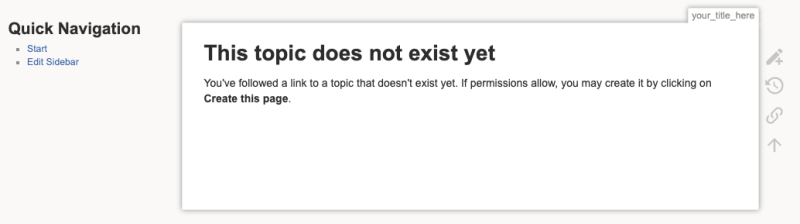
and if you click the little pen with the + symbol you should see this next to it:
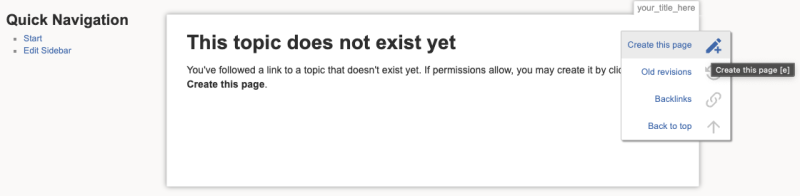
So if you click this then you can start editing your new article.
How to Edit An Existing Article?
If you want to edit an existing article you can find it by using the search bar or whatever link you used for it in your URL-bar.
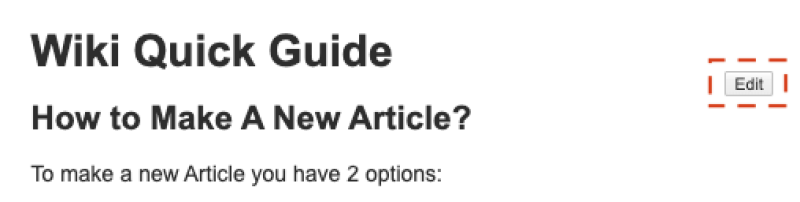
Then you have two options. You can either edit a section of the article by clicking thislittle button:
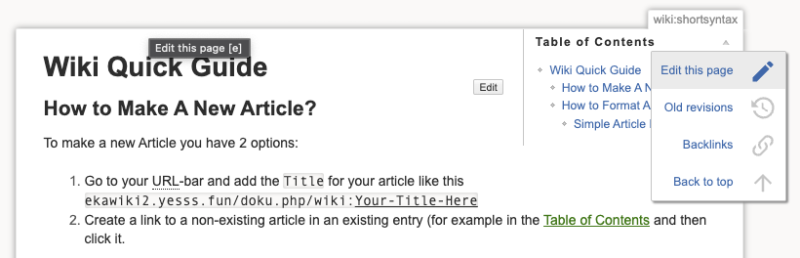
or you can edit the entire article by clicking the the little document icon you find here:
How to Format Your Article?
For a complete guide on how to create / edit an article please consult the Doku Wiki Manual Section 3. Using Doku Wiki.
If this is too much you will find below a very short (and incomplete) version that will help you to get started.
Simple Article Editing
Whether you edit an existing article or have created a new one – you will probably be confronted with with this text editing interface:
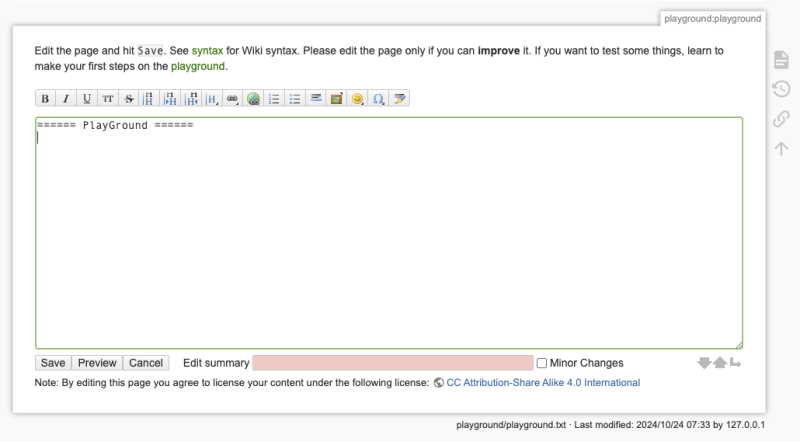
which is mostly pretty self explanatory.
If you want to play around and familiarize yourself with the styling options and functionality of this in a test environment you can do so on the Playground or just start figuring things out in your article.
Here you can find a easy explanation of what the buttons in the toolbar do.
And Here you can find a detailed explanation of all the syntax to style your text, create headlines, link images, add links and so on.
Adding Text Styling
These buttons:

are for text styling there are some more options available that you can see in the syntax sheet.
These buttons:
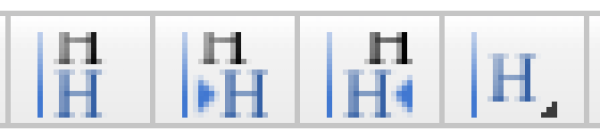
are there to insert headlines. They are especially important because your headlines are defining the sections of your article and give it structure! You can use the buttons to create headlines and sub-headlines.
Little description from left to right:
- Create headline on the same level as the one before.
- Create headline one level down from the one before.
- Create headline one level up from the one before.
- Gives you a dropdown menu to chose with level of headline you want to use with
H1being the highest andH5being the lowest level.
Uploading Media
First of all – a list of all currently allowed file extensions:
jpg, jpeg, gif, png, webp, ico, mp3, ogg, wav, webm, ogv, mp4, vtt, tgz, tar, gz, bz2, zip, rar, 7z, pdf, ps, rpm, deb, doc, xls, ppt, rtf, docx, xlsx, pptx, sxw, sxc, sxi, sxd, odc, odf, odg, odi, odp, ods, odt, svg
Uploading and embedding media is quite easy. All you have to do is to click this button:
and the Media Files Window will open:
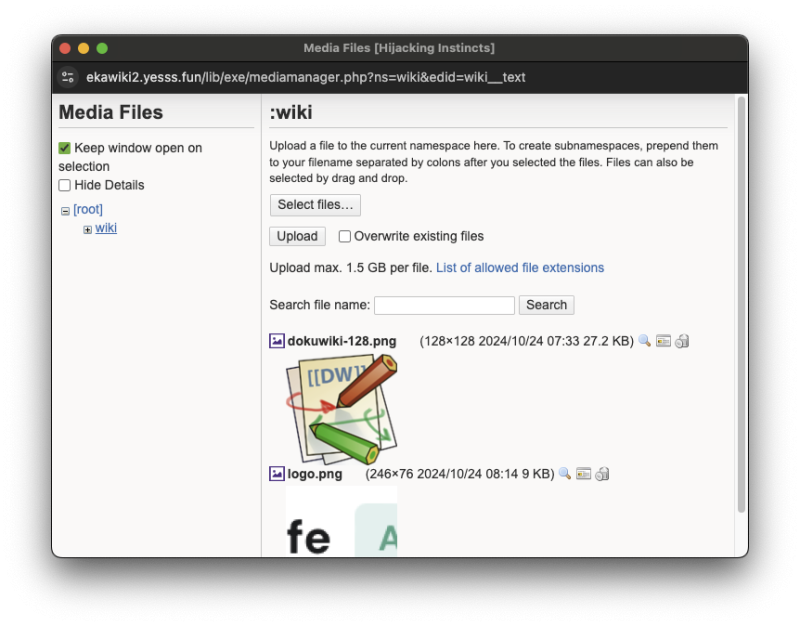
where you can upload all of the media-types specified above.
If you want to upload a file into a specific subfolder you can create this by doing the following:
- Navigate to the folder you want to upload into through the Media Files Side bar:

(You can use the little plus symbol to see the subfolders inside the directory.)
- You can see which folder you are currently in here:
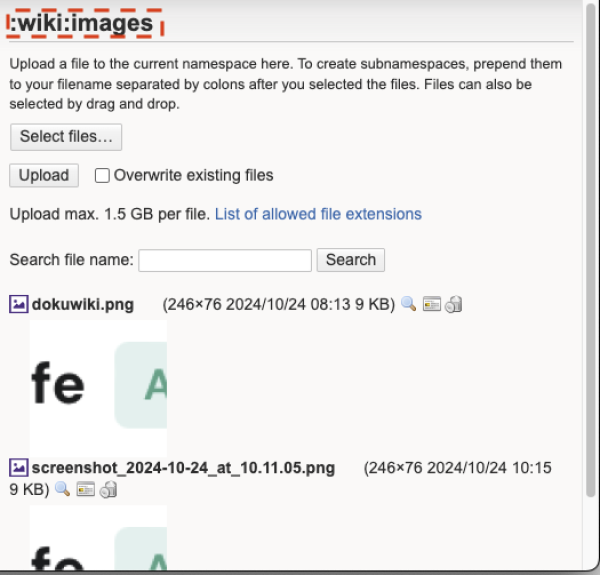
- To create a new folder in the one you are currently in you can do this by putting
:MyFolder:before the filename after selecting your file (see example below).
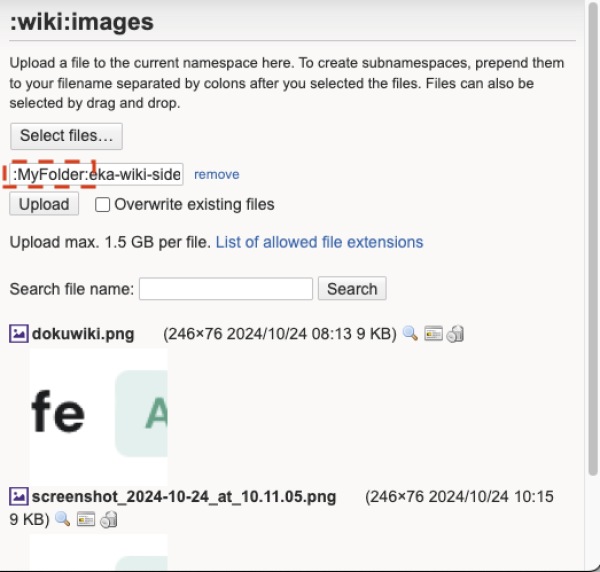
(Please note that you might have to close and reopen the Media Files Window for your subfolder to show up properly!)
This tutorial will be updated on a rolling basis. If you have any more questions feel free to drop by the GD MA Studio and ask a question.
Adding a caption to your images
If you want to add a cation to your images and have it displayed together in a nice box (like on the real wikipedia) you can do so in the following way:
If this is your normal way to embed an image: {{:wiki:images:tutorial:YourImageFileName.png?nolink&300}}
you can just add this bracket [ before and this ] after the image link. To then add a caption you can just put a pipe character | after the link and add your caption after that.
After that total your link should now look something like this:
[{{:wiki:images:tutorial:YourImageFileName.png?nolink&300|Example image produced for demonstration purposes}}].
This should result in some thing like this:


Add Article To The Sidebar
If you want add an article to the sidebar just click the Edit Sidebar link here or in the sidebar itself. If you go to edit the Sidebar Article you can just add a link to your Article there and it should show up.